
Discover tutorials, user manuals, and more.
Create Instance
Creating an Instance in the Pico Cloud Portal is quick and simple.
Just click the Create button in the top-right corner, and you’ll be taken to the Create Instance page. From there, simply select or fill in the required details to launch your instance in a few easy steps.
- Click “Create” – located at the top-right corner of the Instances page.
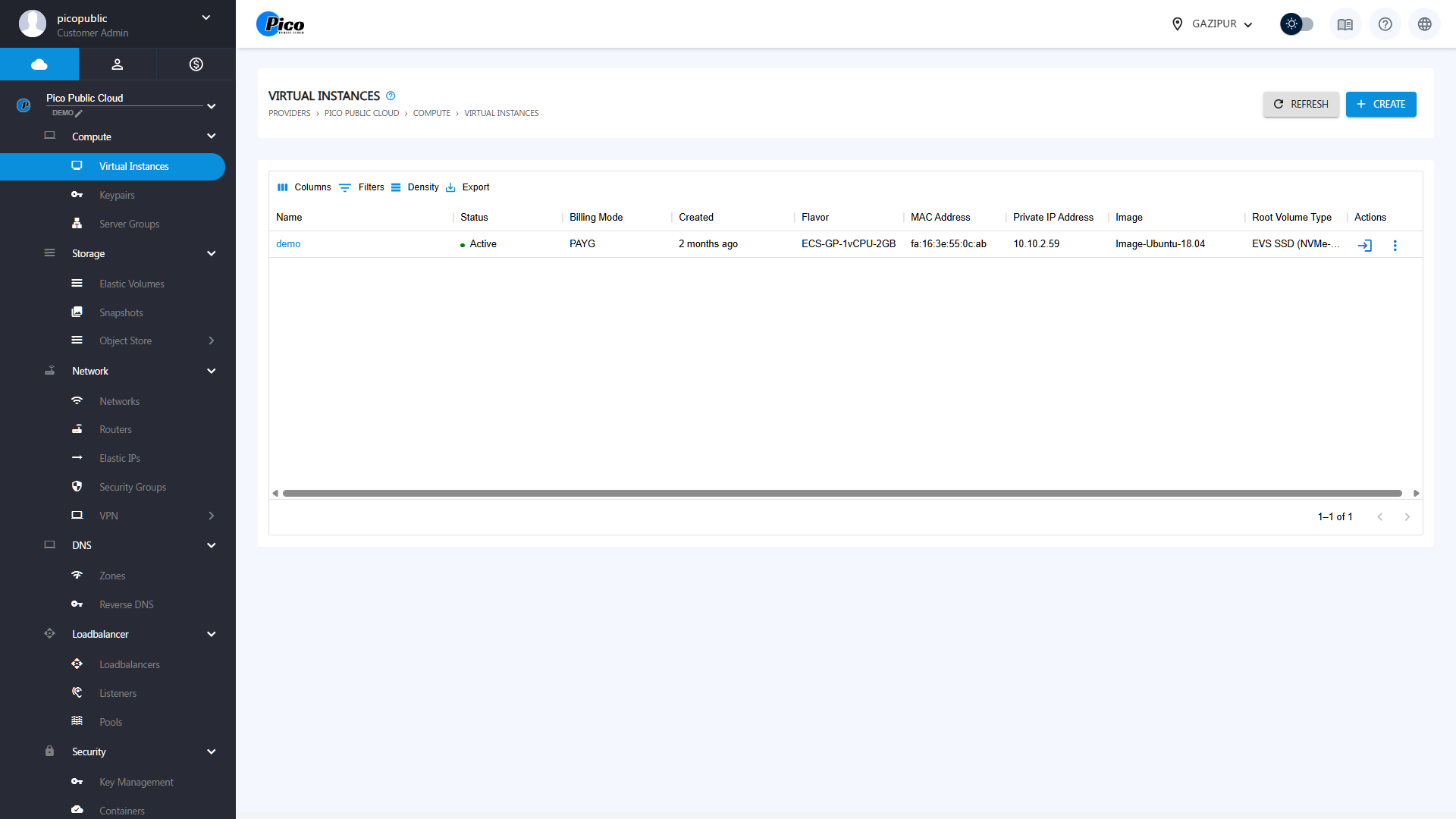
You’ll be taken to the Create Instance page, where you’ll need to provide the following:
- Select resource plan.
- Choose an image: Choose the OS and the version you want
- Virtual Instance name: Give your VM a unique name
- Flavor: Pick the compute size (vCPU, RAM)
- Availability Zone: Select an Availability Zone
- Select Volume Type & Root Size: When creating an instance, you have to choose a Volume Type and Root size.
- Select or Create Network: Choose or set up a network so your VM can connect to other resources and the internet.
- Select or Create SG: Pick a Security Group (SG) to control inbound and outbound traffic. You can also create a new one with customized firewall rules.
- Select Key pair: To log in to your VM.
- Create a key pair: If you don’t have a key pair yet, generate one directly in the portal.
- Create Server Group if Required: For advanced deployments, you can place your instance into a Server Group to control how VMs are distributed (e.g., for high availability or anti-affinity).
- Upload Cloud-Init Script: Automate instance setup with your own script.
- Add Meta Data: Attach custom information or tags to your instance.
- Then click on Done