
Buckets
Object storage is a scalable cloud storage system used to store and manage large volumes of unstructured data such as documents, images, videos, logs, and backups. In object storage, data is stored as objects inside logical containers called buckets, and access is controlled through credentials.
Bucket
A bucket is the primary container used to organize and store objects (files) in object storage.
- Each bucket has a unique name within the storage system.
- Objects such as files, backups, or application data are uploaded into the bucket.
Buckets can have access policies, permissions, and lifecycle rules to manage how data is stored and accessed.
Example:
bucket-name: project-backup
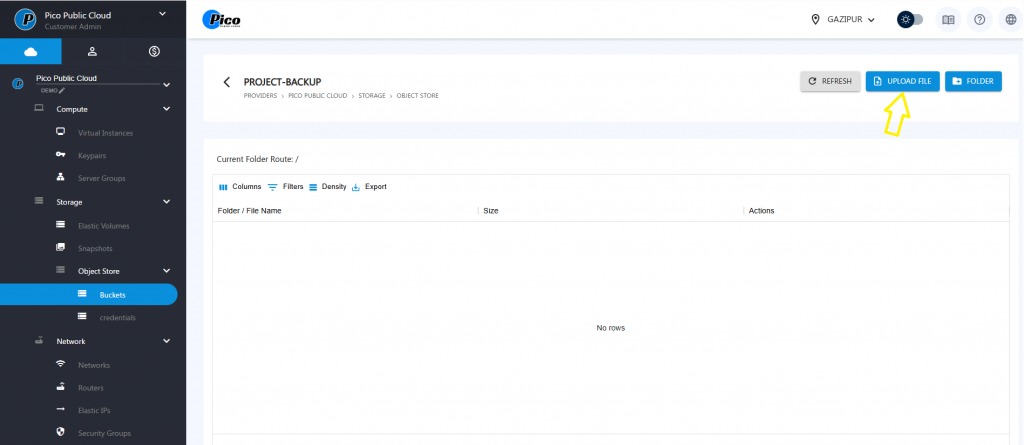
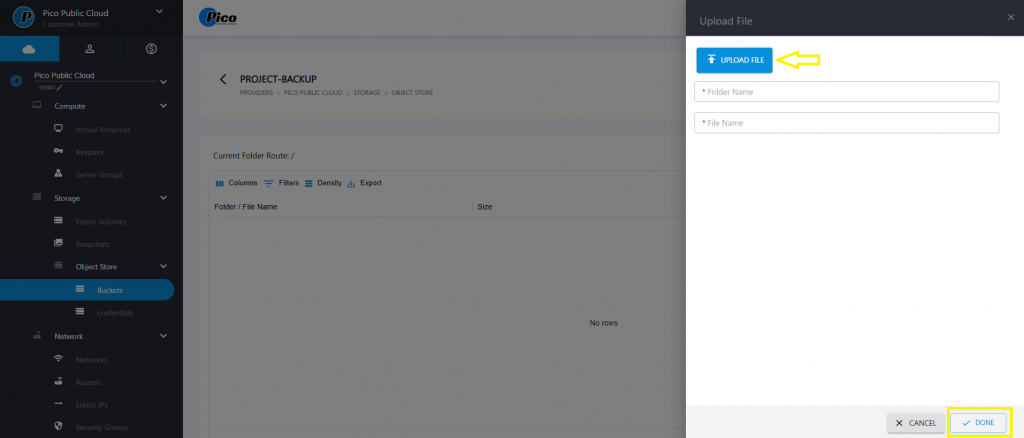
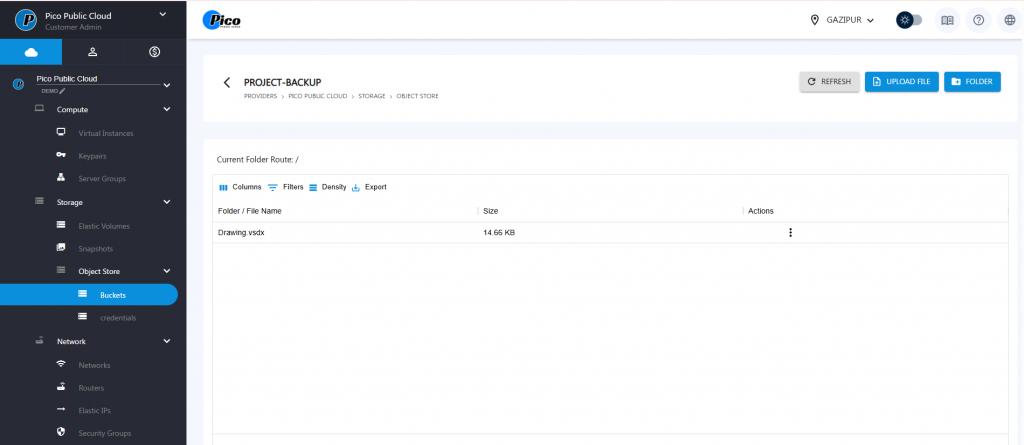
Steps to Create Bucket, Folder, and Upload File
1. Login to the Cloud Console
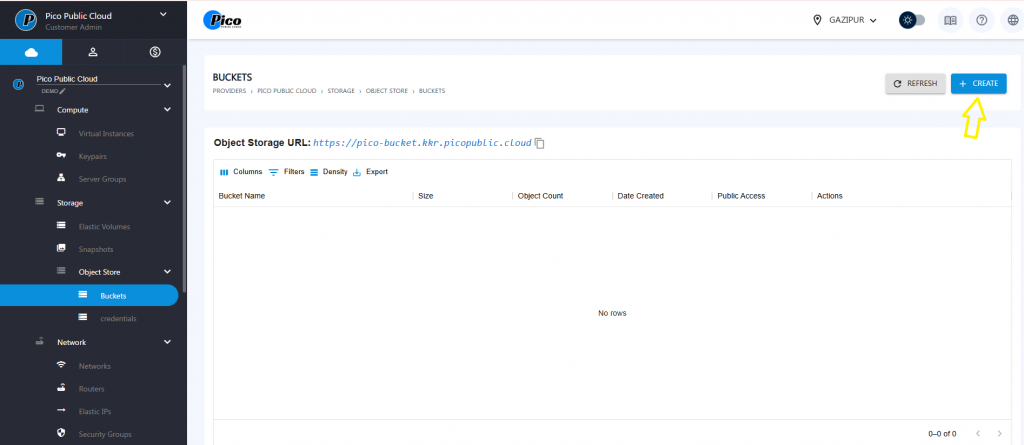
Log in to the Pico Public Cloud Customer Admin Portal.
From the left menu panel, navigate to:
Storage → Object Store → Buckets
Create a Bucket
2. Create New Bucket
In the Buckets page, click the + CREATE button in the top-right corner.
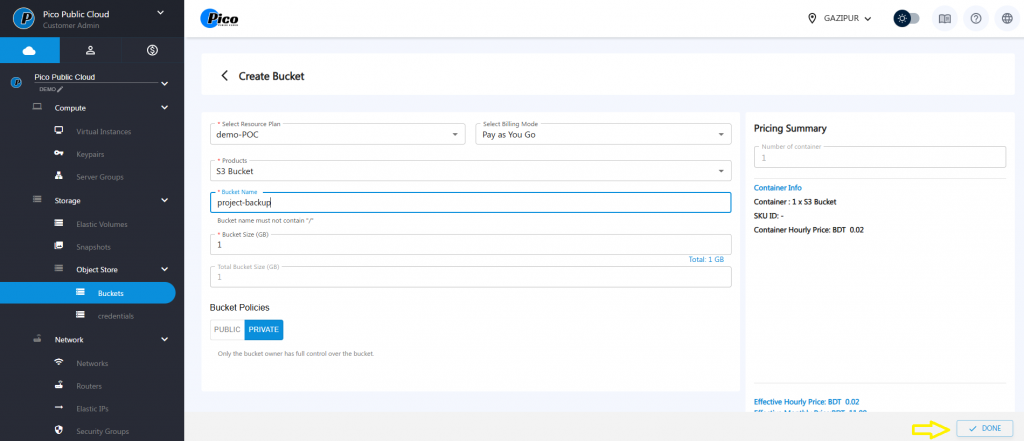
3. Configure Bucket Settings
Fill in the required fields:
- Select Resource Plan: Choose your plan (example: demo-POC)
- Select Billing Mode: Pay as You Go
- Products: S3 Bucket
- Bucket Name: Enter a unique name (example: project-backup)
- Bucket Size (GB): Specify storage size (example: 1 GB)
Bucket Policies:
- Public – Accessible publicly
- Private – Only owner access
4. Create Bucket
- Review the Pricing Summary on the right side.
- Click DONE.
- The bucket will now be created and visible in the Buckets list.
- Create Folder in Bucket
5. Open the Bucket
- Click the Bucket Name (example: PROJECT-BACKUP) from the bucket list.
6. Create Folder
- Click the FOLDER button on the top-right.
- Enter the Folder Name.
- Confirm creation.
- The folder will appear inside the bucket.
- Upload File to Bucket or Folder
7. Upload File
- Open the desired folder (or stay in the bucket root).
- Click UPLOAD FILE.
8. Select File
- Browse and select the file from your computer.
- Confirm upload.
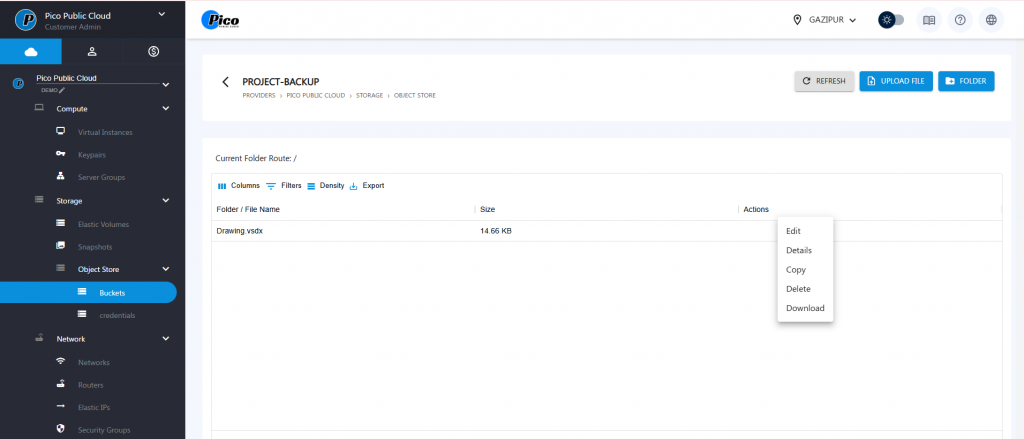
Available Actions for Uploaded Files
From the Actions menu beside each file, you can:
- Edit – Modify file information.
- Details – View file metadata.
- Copy – Duplicate the file to another location.
- Delete – Remove the file from the bucket.
- Download – Download the file to your local system.
2. Credentials
Access to the object storage service is secured through credentials, which allow users or applications to authenticate and interact with the storage system. These credentials typically include:
- Access Key ID – Acts like a username to identify the user or application.
- Secret Access Key – Works like a password to authenticate the request securely.
Applications use these credentials along with the storage endpoint URL to perform operations such as:
- Upload objects
- Download objects
- Delete objects
- List stored objects in a bucket
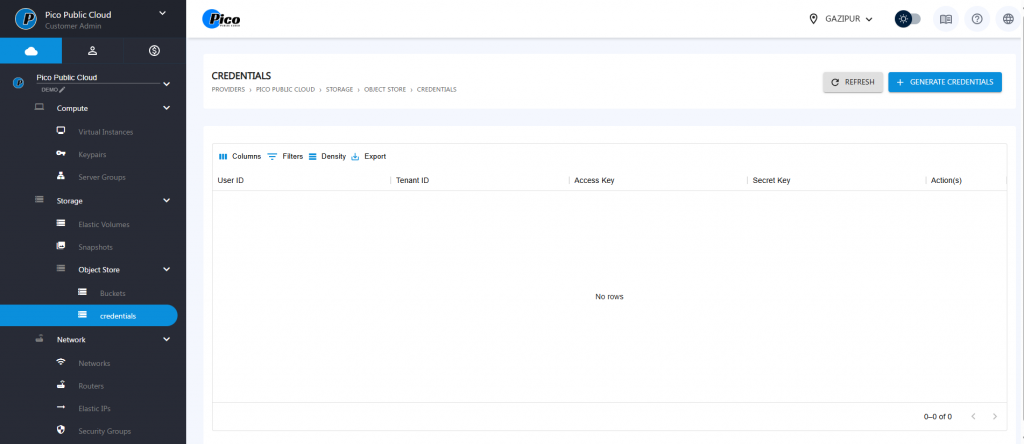
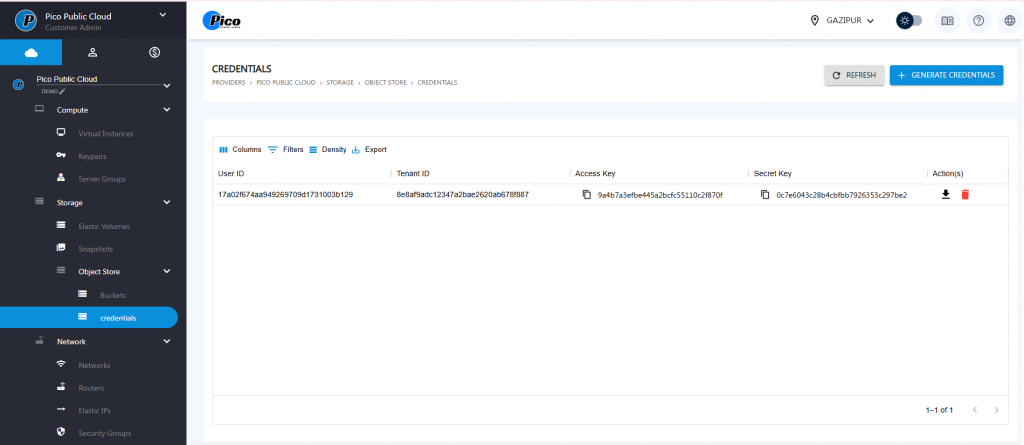
Steps to Generate Object Storage Credentials
- Log in to Pico Public Cloud
- Access your dashboard using your credentials.
- Access your dashboard using your credentials.
- Navigate to Object Storage
- From the left sidebar:
- Click Storage
- Then click Object Store
- Select Credentials
- From the left sidebar:
- Open Credentials Page
- You will see existing credentials (User ID, Tenant ID, Access Key, Secret Key).
- You will see existing credentials (User ID, Tenant ID, Access Key, Secret Key).
- Generate New Credentials
- Click the “+ Generate Credentials” button (top-right).
- Click the “+ Generate Credentials” button (top-right).
- System Creates Keys Automatically
- A new row will appear with:
- User ID
- Tenant ID
- Access Key
- Secret Key
- A new row will appear with:
- Copy the Credentials
- Click the copy icon beside:
- Access Key
- Secret Key
- Click the copy icon beside:
- Download (Optional)
- Click the download icon under Actions to save credentials.
- Click the download icon under Actions to save credentials.
- Delete (If Needed)
- Use the delete icon to remove any unused credentials.
- Use the delete icon to remove any unused credentials.
- Refresh List
- Click Refresh to reload updated credentials.
⚠️ Best Practices
- Never share your Secret Key
- Rotate credentials periodically
- Delete unused credentials for security